WooCommerce
Install and configure the Kustom Checkout plugin for WooCommerce, including the WordPress settings that break the checkout if you get them wrong, where the API credentials come from, and the migration path for stores moving off Vipps Checkout.
Kustom Checkout for WooCommerce is an embedded checkout that replaces the WooCommerce checkout page with a Kustom iframe — no redirect, and one plugin for every Kustom payment method. The plugin is built and supported by Krokedil, whose install and activate guide is the detailed reference. This page is the shorter path through it: the WordPress and WooCommerce settings the plugin depends on, installing it, getting credentials, testing in playground, going live and the separate procedure for stores switching over from Vipps Checkout.
Before you start
Section titled “Before you start”Your store must meet all of these:
- WordPress 5.0 or newer.
- WooCommerce 9.7.0 or newer.
- PHP 7.4 or newer. PHP 8.x is supported.
- HTTPS with a valid SSL certificate.
- A Kustom merchant account with API credentials — see Activate Kustom Checkout on your platform for how to get one.
- A Kustom agreement for each country you sell to, and a store that can take payment in that country’s local currency.
- Plugins and a theme that work alongside the checkout. Krokedil keeps a list of compatible plugins.
Krokedil’s technical information page is the source of truth for these versions. Check there if you’re close to a floor.
Either checkout page works. The plugin has supported WooCommerce’s Checkout block since
version 2.16.0, and when that block is enabled it’s used regardless of your checkout_flow
setting. On a plugin older than 2.16.0, the page has to be the classic shortcode checkout. The
plugin also supports High-Performance Order Storage (HPOS).
Selling in more than one country? Read Selling into several markets first. You may need a multi-currency plugin, which can be added later.
Step by step
Section titled “Step by step”1. Fix the WordPress and WooCommerce settings the plugin depends on
Section titled “1. Fix the WordPress and WooCommerce settings the plugin depends on”Do this before you install the plugin. Each of these breaks the checkout in a way that’s hard to diagnose afterwards.
- Pretty permalinks. Under Settings → Permalinks, select any option other than Plain. Kustom’s callbacks can’t reach your store on plain permalinks, so orders never get their status updated.
- Prices with two decimals. Under WooCommerce → Settings → General → Currency options, set the number of decimals to 2. At fewer decimals the WooCommerce total and the Kustom total drift apart and the order is rejected.
- A terms page. Create and publish your terms and conditions page, then assign it under WooCommerce → Settings → Advanced → Page setup. The checkout links to it.
- At least one shipping method. If you sell physical products, add a shipping zone with a shipping method and price for every country you deliver to under WooCommerce → Settings → Shipping. The checkout offers exactly what’s configured there, so with nothing set up it has no shipping options. Skip this if you only sell digital or downloadable products.
- Guest checkout enabled. Under WooCommerce → Settings → Accounts & Privacy, enable guest checkout. Requiring an account defeats the point of an embedded checkout.
- No caching on the cart and checkout pages. Both are dynamic. Caching them shows stale prices, mixes up order numbers and can show one customer another customer’s information. Krokedil covers caching and optimization in more depth.
If you want carrier choices and pickup points inside the checkout rather than flat WooCommerce rates, add the free Kustom Shipping Assistant plugin, which pulls options from your transport management system. It sits on top of WooCommerce shipping rather than replacing it, so every zone you use it in still needs at least one ordinary WooCommerce shipping method. See Shipping Assistant for how it works on Kustom’s side.
2. Install the plugin
Section titled “2. Install the plugin”Search for Kustom Checkout for WooCommerce under Plugins → Add New in your WordPress admin, or download it from either source and upload the .zip:
Activate it once it’s installed.
Order management — capture, refund and cancel from inside WooCommerce — is bundled in the plugin from version 2.19.0. On an older version you also need the separate Klarna Order Management plugin. The Klarna name there is the plugin’s original name, not a different product. Upgrading past 2.19.0 is the better fix.
3. Get your API credentials
Section titled “3. Get your API credentials”Kustom has two environments, and they’re separate accounts — separate logins and separate credentials. Setting one up doesn’t give you the other. Start in playground.
| Environment | Portal |
|---|---|
| Playground (test) | portal.playground.kustom.co — create an account |
| Production (live) | portal.kustom.co — apply for an account |
Once you’re logged in:
-
Go to Developers → API.
-
Select Generate new, or use credentials you’ve already created.

-
Copy the Key ID and the Password. The password is shown only once and is gone when you close the dialog, so paste both somewhere safe before you do. Treat them like any other password.
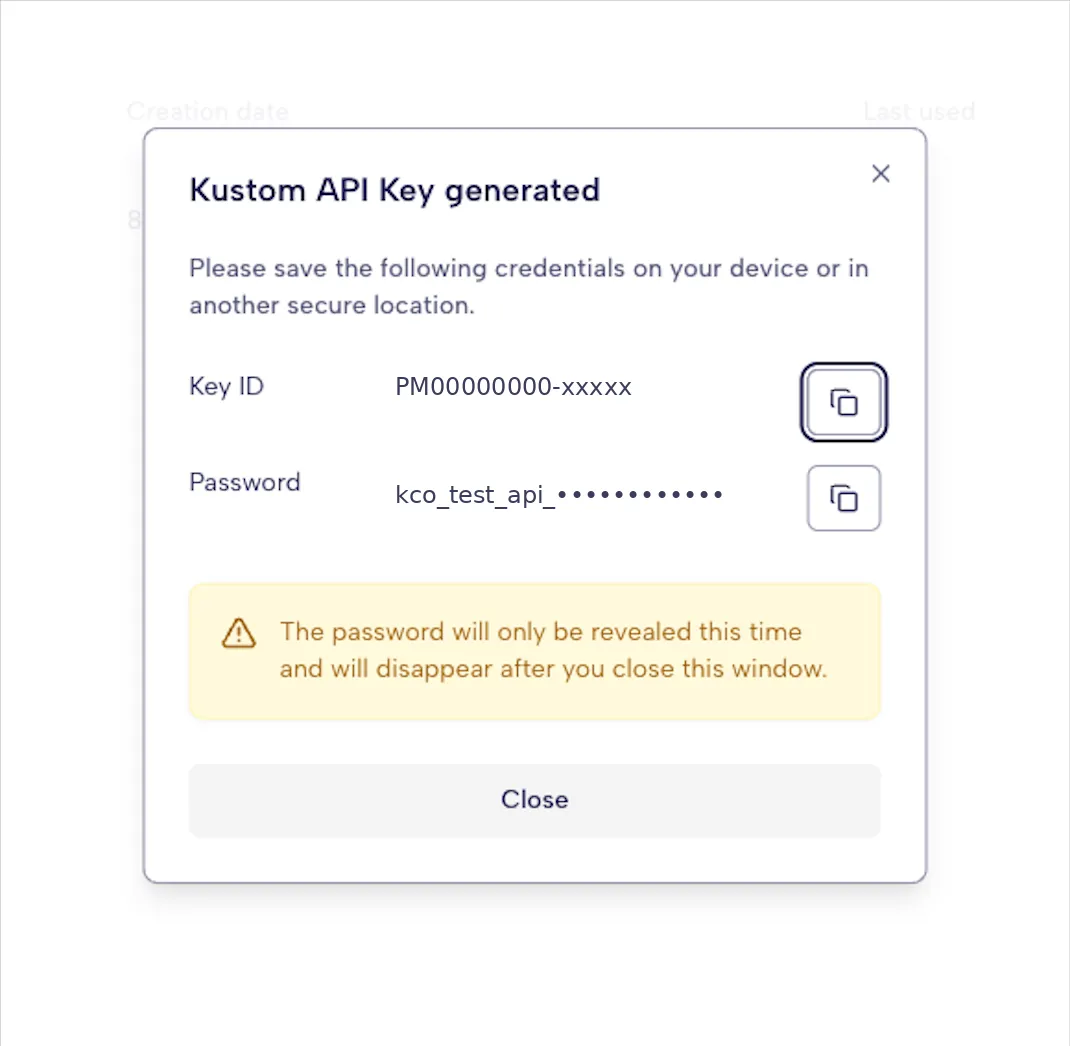
The plugin labels these differently: the Key ID is the API Username and the Password is the API Password. Neither is your Merchant ID (MID), and neither is your Kustom Portal login.
4. Enable and configure Kustom Checkout
Section titled “4. Enable and configure Kustom Checkout”Go to WooCommerce → Settings → Payments → Kustom Checkout → Manage. Under General configuration, set:
- Enable Kustom Checkout.
- Enable Test Mode, while you’re still testing.
- Log debug messages. Leave this on — Krokedil support will ask for the log, and it has to be on before the problem happens.
Then, under API Credentials, paste the playground Key ID into Test Kustom API Username and the password into Test Kustom API Password. Production credentials go in the Production Kustom API Username and Production Kustom API Password fields, later.
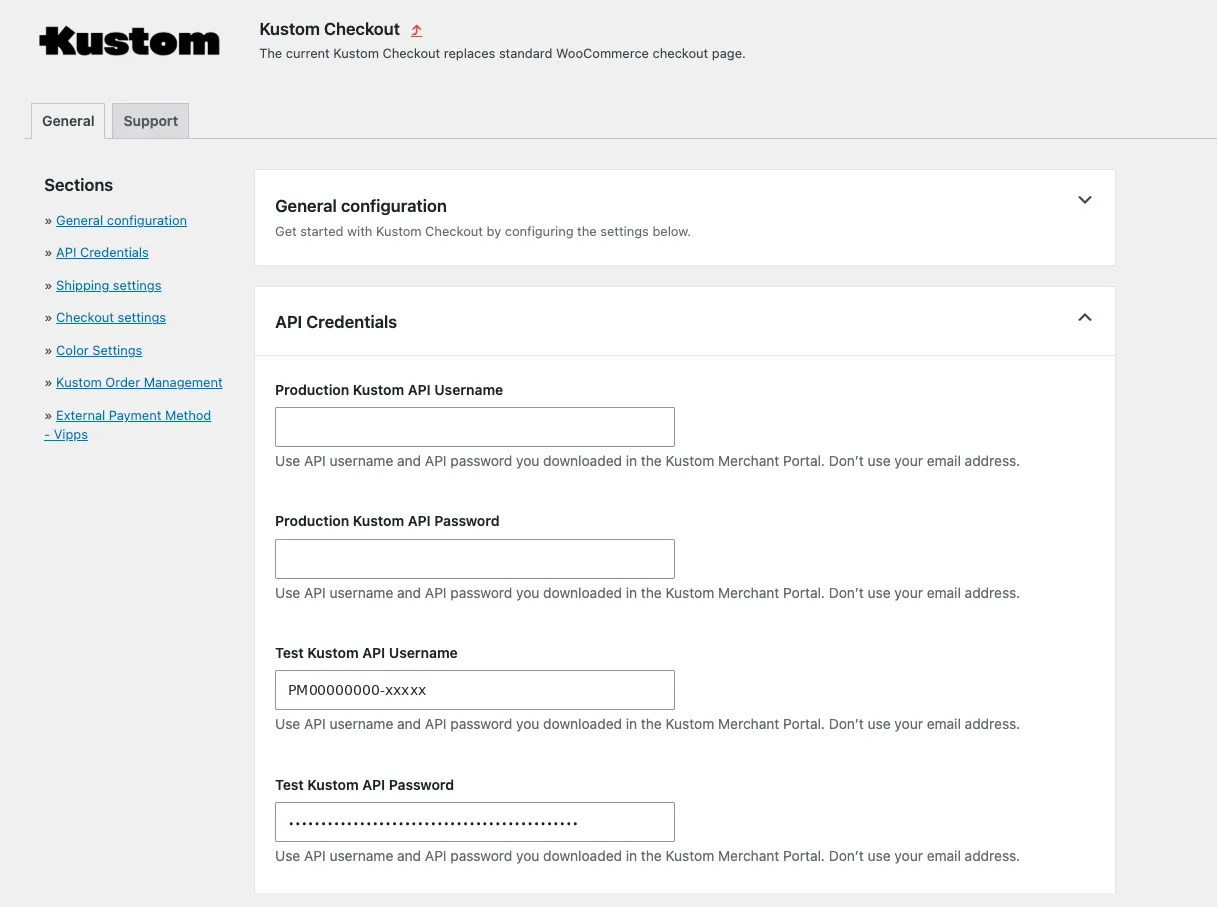
The rest of the page:
- Title and Description, which appear in the checkout and in order confirmation emails.
- Other payment method button text, if you offer non-Kustom methods alongside. Leave blank for the default translatable text.
- Checkout layout — one column, or two columns with Kustom on the left or the right.
- Optionally Add Kustom Post Purchase info to order email, and the express button and customer authentication toggles.
Save changes.
Test mode here is the plugin’s own setting. It’s unrelated to WooCommerce’s Site Visibility mode, which puts its own Live or Coming soon label in the admin.
5. Go live
Section titled “5. Go live”Once your playground test passes, repeat steps 3 and 4 against your production account: a separate login at portal.kustom.co, separate credentials, pasted into the Production fields rather than the Test ones. Uncheck Enable Test Mode, save, and run the production purchase under Verify below.
Check that it works
Section titled “Check that it works”In test mode, with playground credentials:
-
Add a product to the cart and go to checkout.
-
Confirm the Kustom iframe renders inside your theme rather than the WooCommerce checkout form, and that your shipping options appear at the right price.
-
Complete a payment with test data. In playground the checkout also has a Test Data tab with payment details.
-
Confirm you land on the thank-you page and the order appears in WooCommerce → Orders with the correct status.
-
Check WooCommerce → Status → Logs for the callback the plugin received. If the order status never moved, the callback didn’t arrive — that’s the permalinks setting.
-
Log in to the playground Portal and confirm the order is there, for the same amount, with a status that lines up with WooCommerce’s:
WooCommerce Kustom Processing Authorized Completed Captured
Then repeat once in production with a real, low-priced purchase, and confirm the order is visible in portal.kustom.co with a total matching WooCommerce. Refund it afterwards. It’s the only way to know your production credentials are right.
Variations
Section titled “Variations”Switching from Vipps Checkout to Kustom Checkout
Section titled “Switching from Vipps Checkout to Kustom Checkout”Your customers keep Vipps: it’s one of the payment methods inside Kustom Checkout, alongside cards, invoice and pay later. What changes is your side — a new plugin, a new portal, new credentials, and orders from the switch onwards managed in the Kustom Portal instead of the Vipps portal. The payment step will look different, because it’s now Kustom’s rather than Vipps’s, so tell whoever answers customer questions for you.
Only start once Kustom has emailed you an onboarding invitation. Merchants are moved across
in batches. If you haven’t had one, wait — you’ll be contacted when your store’s turn comes. If
you use Vipps/MobilePay Recurring or Vipps Express Checkout, your migration is handled
separately — don’t follow this path, and contact support@kustom.co.
Do it twice. Run the whole sequence first on a staging copy of your store with playground credentials and test mode on, then again on your live store with production credentials and test mode off. Your live store keeps taking orders through Vipps untouched while you prove the setup. If you have no staging site, do a single pass on the live store inside a maintenance window — a few minutes of planned downtime costs less than a misconfigured checkout found by a real customer.
-
Confirm your store meets Before you start, and work through the settings checklist in step 1, including shipping. If you want the carrier options and pickup points Vipps showed, that’s the Kustom Shipping Assistant described there.
-
Install Kustom Checkout for WooCommerce as in step 2.
-
Get credentials as in step 3 — playground on the staging pass, production on the live pass. If you can’t see the Developers tab, your Portal user doesn’t have permission for it; ask whoever set up your Kustom account to fetch the credentials or give you admin rights.
-
Configure the plugin as in step 4, with test mode on for the staging pass and off for the live pass, and debug logging on for both.
-
Run the checks under Verify. On the live pass that’s a real, small purchase you refund afterwards. If anything fails, stop and contact Krokedil support, mentioning that debug logging is on.
-
Last, on the live store and only after you’ve seen a real Kustom order arrive, go to WooCommerce → Settings → Payments and disable Vipps Checkout. Switch it off any earlier and your store is left without a working payment method.
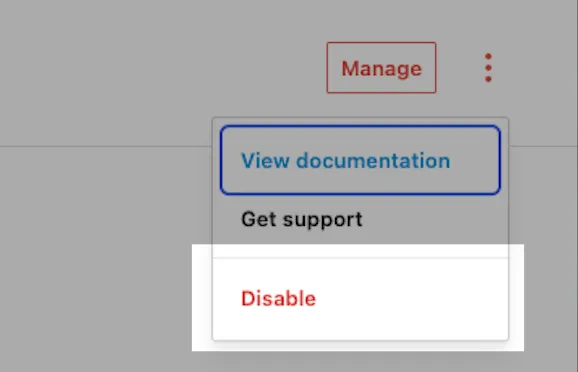
Keep the Vipps/MobilePay for WooCommerce plugin installed and active. Only disable it as a payment method. Orders placed through Vipps Checkout before the switch are still managed through the Vipps portal and Vipps API, and the plugin is what lets you capture, refund or cancel them. Deactivating or deleting it can break those operations on that order history.
Your old Vipps orders stay with Vipps. Find orders placed before the switch in the Vipps portal and handle their refunds and cancellations there, as you always have. Everything from the switch onwards is in the Kustom Portal. Expect to work with both portals for a while; it resolves itself as the older orders age out.
This path is for stores on the WooCommerce plugin. If you built your own Vipps Checkout integration against the API, follow Migrating from Vipps Checkout instead.
Troubleshooting
Section titled “Troubleshooting”The checkout doesn’t load, or the iframe is blank. Check that merchant country and store currency match the credentials you configured, and that test mode isn’t left on with live credentials or the reverse.
Order status never updates. Callbacks aren’t reaching the store. Confirm pretty permalinks are enabled and that nothing — a maintenance mode plugin, a firewall, HTTP auth on a staging site — blocks inbound requests. The log under WooCommerce → Status → Logs shows what arrived.
The checkout has no shipping options. No WooCommerce shipping method covers the customer’s country. Add one under WooCommerce → Settings → Shipping, including in zones that use the Kustom Shipping Assistant.
Buttons are missing in the checkout. Some themes need WooCommerce’s checkout defaults enforced. Test against a stock theme to confirm before chasing the plugin.
Totals differ by a few öre or cents. Price display is set to fewer than two decimals.
There’s no Developers tab in the Portal. Your Portal user lacks the permission. Ask the account’s admin to generate the credentials or grant you access.
Krokedil’s troubleshooting section goes deeper, including error codes, known compatibility issues and callbacks.
For plugin and integration questions, contact
Krokedil support, who build and maintain it — read
how to prepare a support ticket
first. Kustom provides technical support through Krokedil for stores that meet the requirements
in Before you start, so on an older WordPress, WooCommerce or PHP version,
updating comes first. For anything about a specific purchase, your account, your move to Kustom
or a payout, contact support@kustom.co.
Related
Section titled “Related”- Capture an order — take the money when the goods go out
- Refunds — including the production test purchase you just made
- Open source platform responsibility — what you own when you run Kustom on WordPress
- Activate Kustom Checkout on your platform — getting the merchant account the plugin needs
- Authentication and environments — where Key ID and Password come from
- Test data — identities and cards that pass in playground
- Shipping Assistant — carrier options and pickup points in the checkout
- Migrating from Vipps Checkout — the same switch for a custom API integration
- Integration models — the difference between Kustom Checkout and single payment methods
- Platform catalogue — the other twenty-nine platforms
This page is also available as Markdown — append .md to its URL — and is indexed in llms.txt.