Kustom Shipping Assistant (KSA) enables real-time delivery options to be displayed directly within your checkout. It connects your Kustom Checkout integration with either a partner-managed Transport Management System (TMS) or a direct Shipping API implementation.
The instructions in this guide apply to both Production and the Playground (testing) environment.
We recommend setting up and verifying your integration in Playground first before activating it in production.
If you prefer to build your own shipping backend, see the Shipping API Integration Guide for a deeper dive into direct integration. You will still need to follow this guide to activate KSA.
Before you start, make sure you have everything you need.
KSA works as an extension of Kustom Checkout. Ensure your Checkout integration is live before continuing.
The Shipping Assistant is only used for physical deliveries.
- If there are no shippable items, ensure all
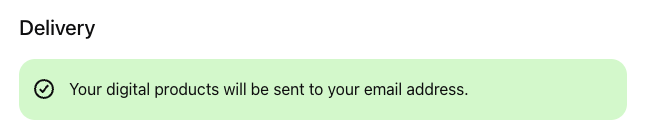
order_lineshave the typedigital. - When there are only digital items, KSA will display the following:
We recommend using static shipping_options as a fallback. These are optional and are only shown if:
- Your KSA configuration exists, and
- Your Shipping API or TMS fails to respond.
In that case, the fallback options ensure the purchase can still be completed.
If you choose to use fallback shipping options, you can configure them in Step 4.
If you want to rely only on static shipping (without KSA), see this page for a more detailed walkthrough.
To activate Kustom Shipping Assistant, you’ll need to provide your shipping credentials, which include:
TMS(if you are using a partner) orEndpoint(if you are not using a partner and want to integrate towards Shipping API directly).Identifier– unique username.Key– password.Markets– the markets that should be configured.
How you obtain these credentials depends on your setup:
- If you use a TMS partner (e.g., Unifaun, Consignor, nShift), they will provide these credentials to you. You can find more information on the TMS partners page.
- If you integrate the Shipping API directly, you generate and manage your own credentials.
Once your credentials are ready, you must configure and activate KSA on your Merchant ID (MID) in the Kustom portal.
Follow this guide for step-by-step instructions on how to:
- Create a profile and add your credentials.
- Add your market(s).
For KSA to be used, either of these conditions must hold true in the create checkout order call:
allow_separate_shipping_addressis set to true or- Fallback
shipping_optionsare present
If either condition is true and there is a KSA configuration on the MID, KSA will be enabled.
"options": {
  "allow_separate_shipping_address": true
}"shipping_options": [
{
"id": "express_priority",
"name": "Home Delivery",
"price": 0,
"tax_amount": 0,
"tax_rate": 0
}
]💡 Recommendation:
Setallow_separate_shipping_addresstotrueand provide fallbackshipping_options.
This ensures:
- The shipping section is shown.
- KSA can dynamically provide options when available.
- You have a graceful fallback if your TMS or Shipping API is unavailable.
Once KSA is configured in the portal and triggered in your Checkout payload, you should verify that everything works as expected.
Use Playground first
- Create a test order in the Playground environment with at least one physical item.
Open the Checkout and review shipping options
- Confirm that the shipping section is visible.
- Verify that KSA loads and displays dynamic shipping options from your TMS or Shipping API.
Confirm fallback behavior (optional)
- If you have configured fallback
shipping_options, simulate an unavailable TMS/Shipping API and check that the static options are shown instead.
- If you have configured fallback
If everything looks good in Playground, you can repeat the same configuration for your Production MID.
Need help?
Contact our support team at support@kustom.co.